A timer for Google Slides that keeps running while you present
Slidetick puts a countdown or count-up timer on your slide that runs in present mode, presenter view and published decks, on any computer or Chromebook. No Chrome extension and nothing for your audience to install. Plus progress bars on every slide, a time budget for every slide in your speaker notes, and different auto-advance times per slide.
Email us to get Slidetick See pricing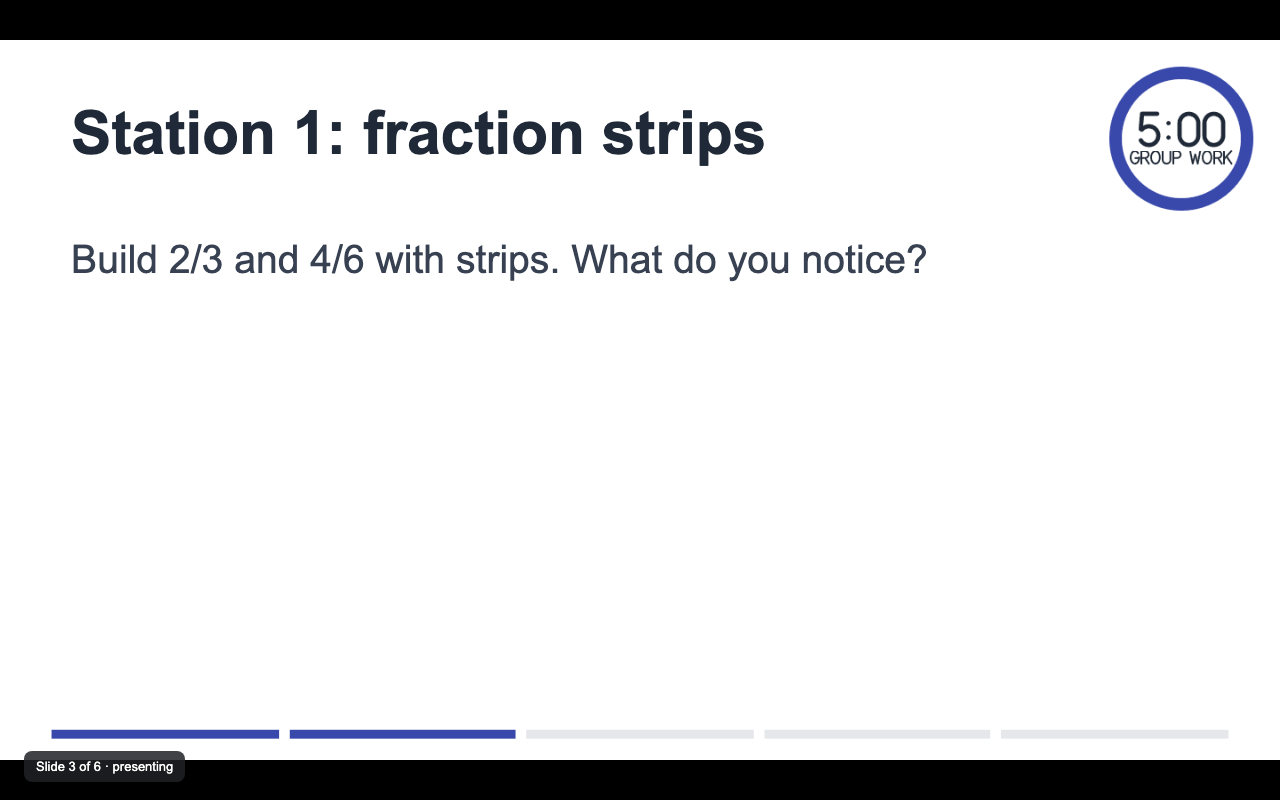
These are real Slidetick timers
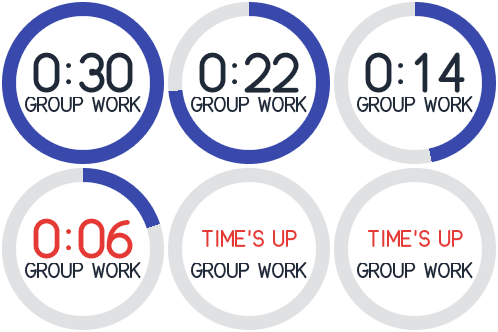
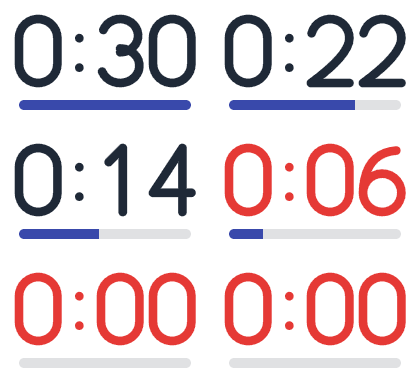
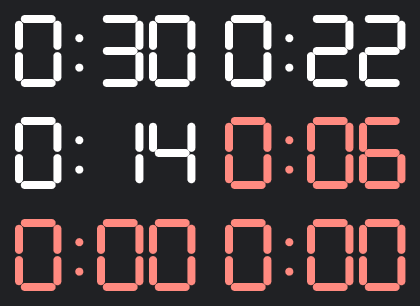
Each one below is the actual image Slidetick puts on a slide, running right now (30 second samples that start over).
What it does
From 1 second to 24 hours. Past 2 hours it steps once a minute. It never shows 0:00 early.
The timer is part of the slide, so it runs on the classroom Chromebook, a borrowed laptop and in published decks.
Digits, digits with a bar, a ring, or a thin bar along the slide edge. Theme colors in one click, or your own.
Numbers turn to your warning color near the end, blink at zero and can show "Time's up" or any short message.
Repeat mode starts the timer over when it ends. Label it "Station 2" or "Quiet work".
Click a timer on a slide and the sidebar loads it. Update keeps its spot, size and any animation you gave it.
How to add a timer to Google Slides with Slidetick
- Install Slidetick, open your presentation and choose Extensions > Slidetick > Open Slidetick.
- Pick a time (type
5,90s,1:30or2h, or click a chip), a look and colors. The preview shows the exact timer. - Click a slide, then Insert timer on this slide.
- Right before you present, click Restart all timers. Then present as usual.
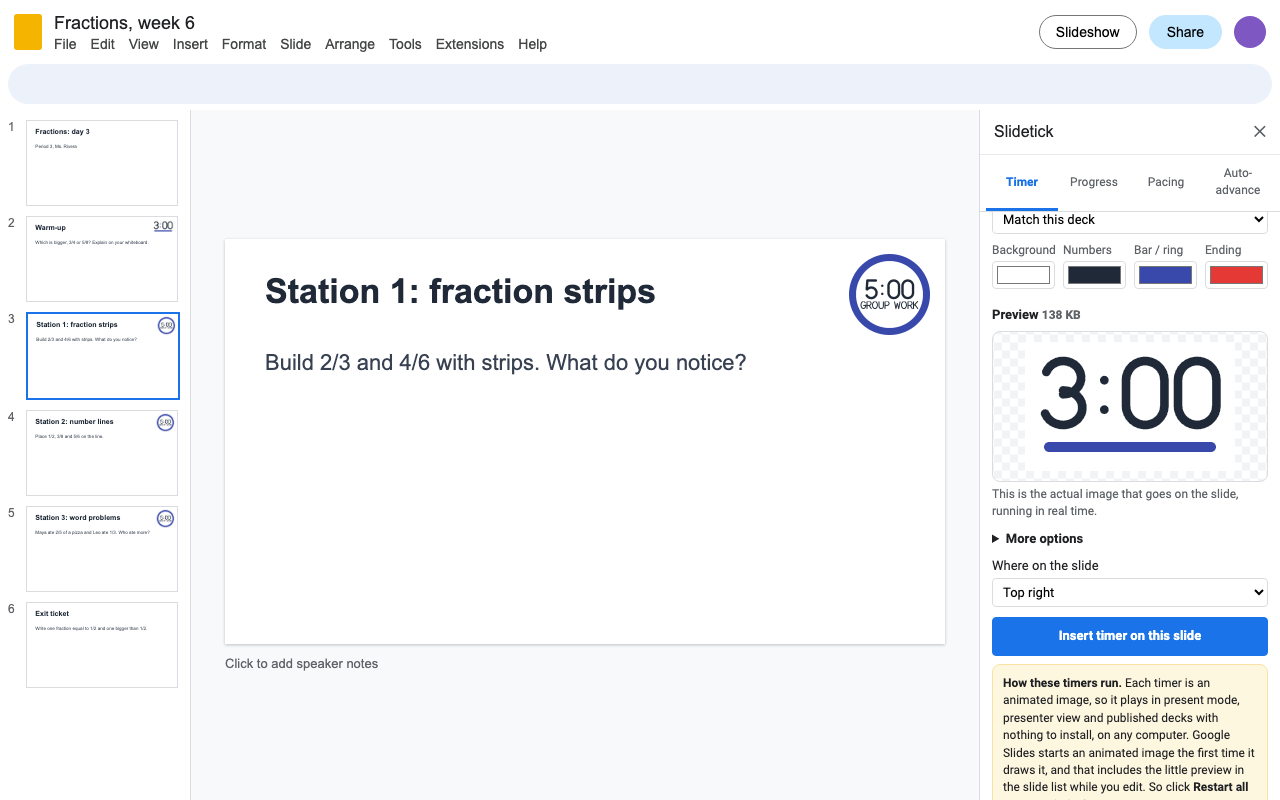
Why "Restart all timers"? Slidetick timers are animated images, which is why they run anywhere with nothing installed. Google Slides starts an animated image the first time it draws it, and that includes the small preview in the slide list while you edit. Restart swaps in a fresh copy of every timer in about a second each, so each one starts fresh when you present. It's always free.
Want a timer to wait until you click? Select it and use Insert > Animation > Appear (On click). Restart keeps the animation. Timers can't make sound, because Google Slides gives add-ons no way to play audio on a slide.
Progress bars on every slide
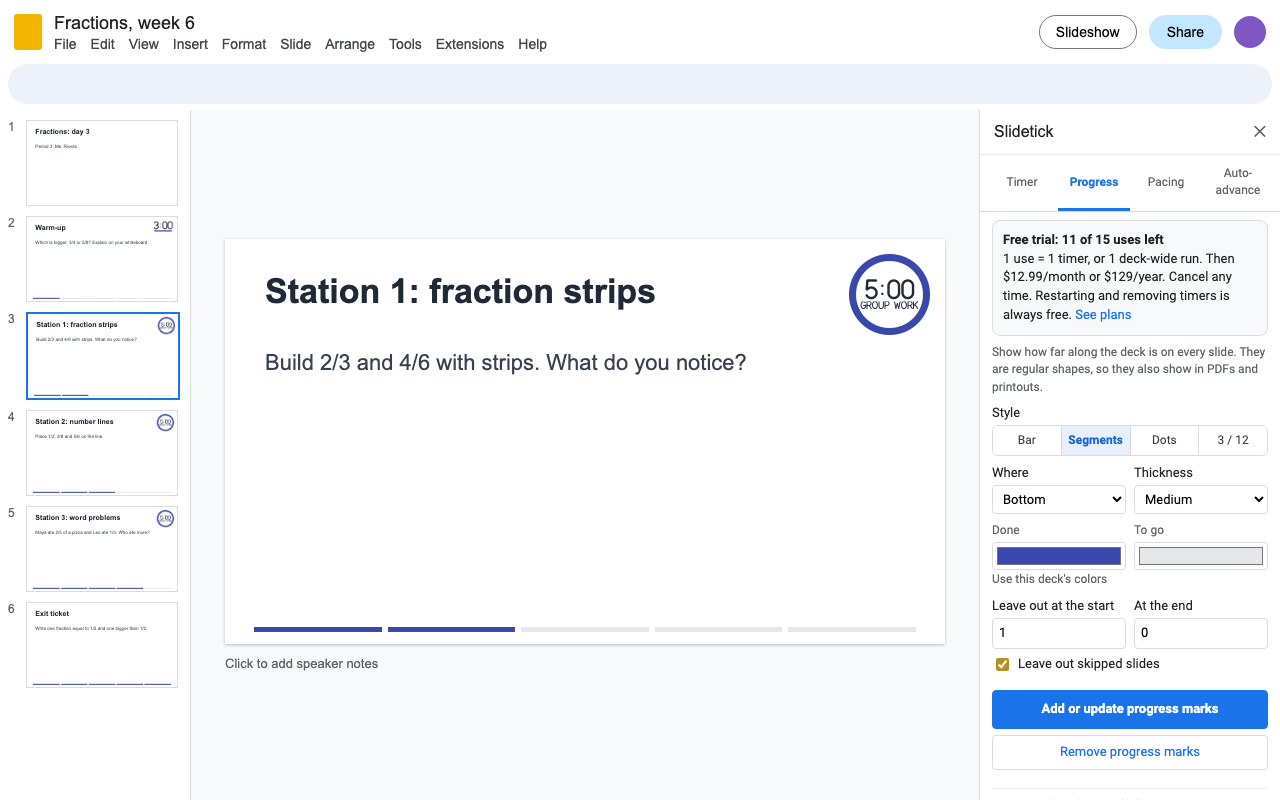
Show how far along the deck is with a bar, segments, dots or "3 / 12", in your theme colors. Leave out the title slide, closing slides or skipped slides. Moved or added slides? Run it again and it replaces its own marks. They are ordinary shapes, so they show in PDFs and printouts too.
A time budget for every slide
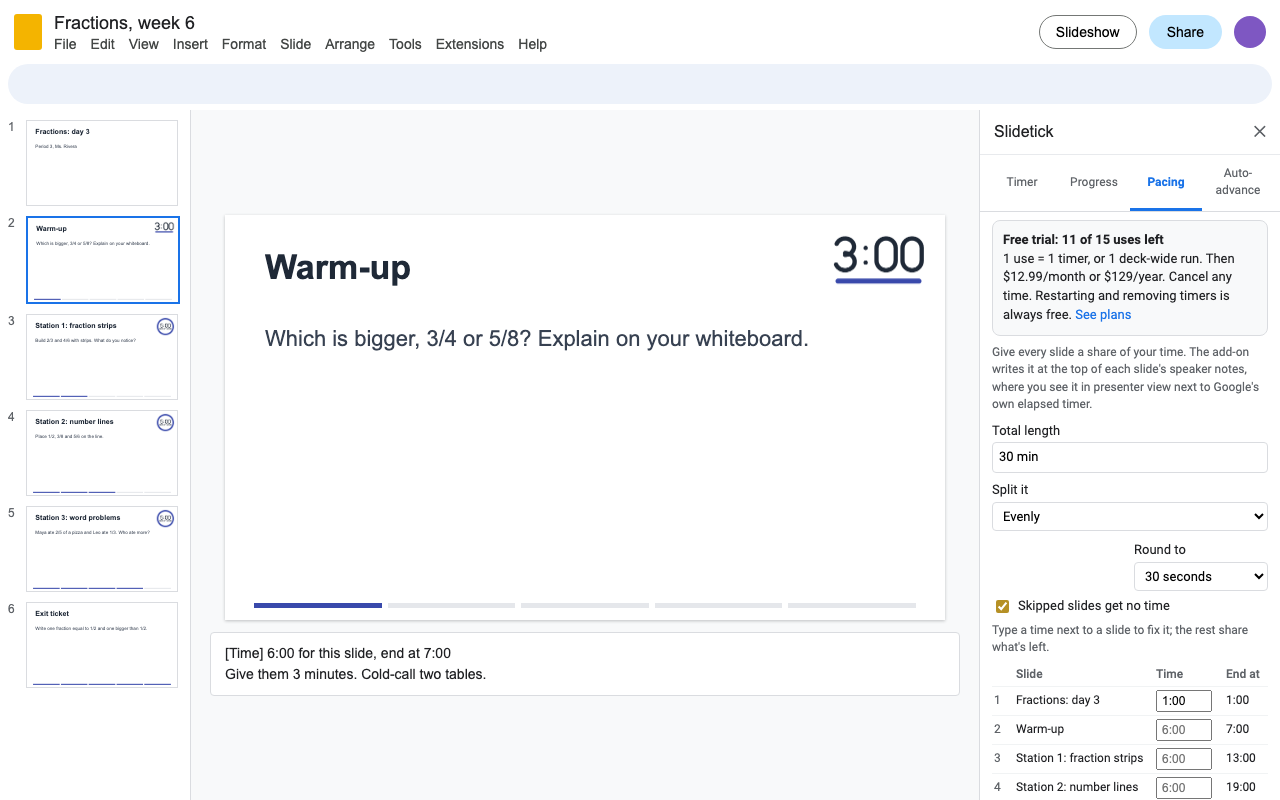
Tell Slidetick how long your talk or lesson is. It splits the time evenly, by how much speaker notes each slide has, or from your notes at a speaking pace, and you can fix the time of any slide. Each slide's speaker notes get one line at the top, like [Time] 1:30 for this slide, end at 6:00, which you see in presenter view right next to Google's own elapsed timer. It can also put a small countdown of its budget on every slide.
Different auto-advance times per slide
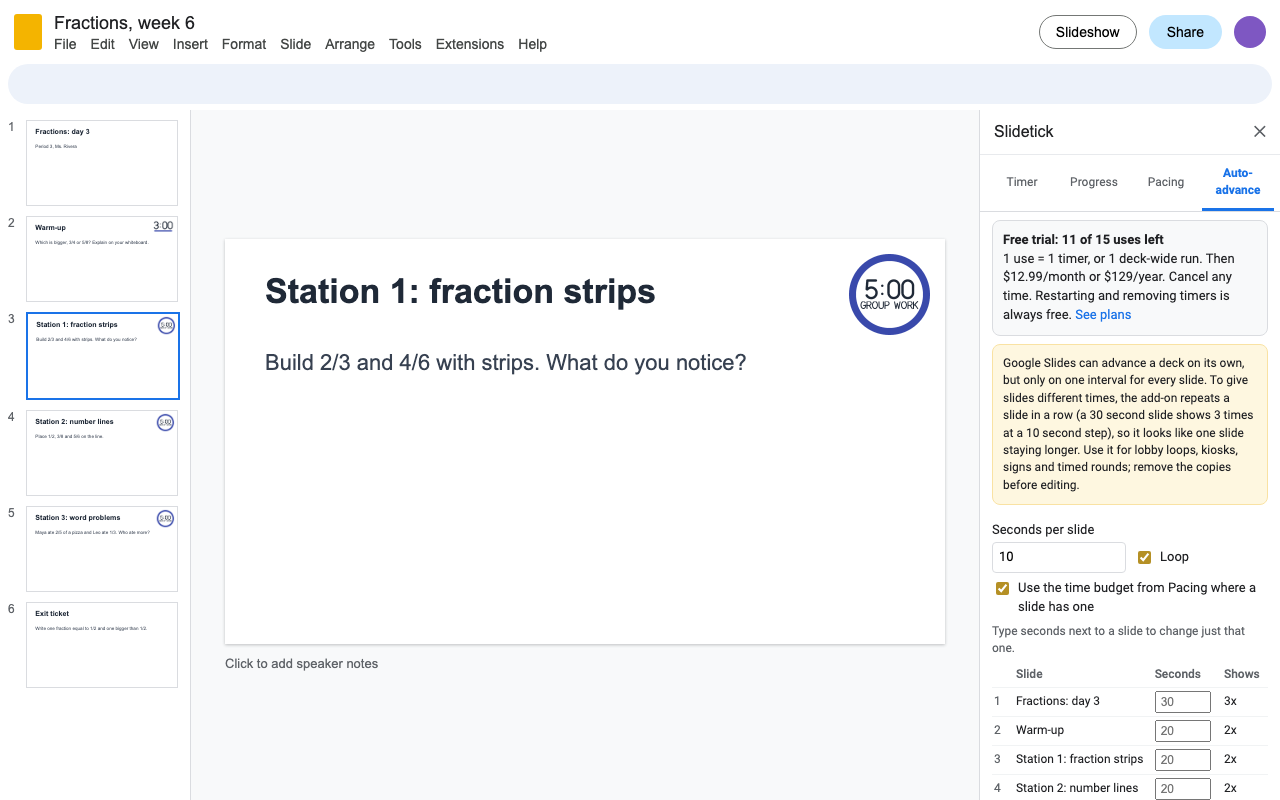
Google Slides can play a deck by itself, but only on one interval for every slide. Slidetick gives each slide its own time by repeating a slide in a row: at a 10 second step, a 30 second slide shows 3 times and looks like one slide staying 30 seconds. You get the step to pick in present mode's Auto-play and the published link that starts and loops by itself. Made for lobby loops, kiosks, signs and timed rounds. One click removes the copies.
Pricing
Every feature, one Google account. Cancel any time.
Same features, billed yearly.
Team plan: every account at your school's or company's Google Workspace domain.
15 uses or 14 days, whichever comes first. No card needed. 1 use = 1 timer inserted or updated, or 1 deck-wide run (progress marks, time budgets, slide countdowns, auto-advance).
No surprise charges. We never charge you unless you start a checkout yourself. Slidetick shows your trial status and these prices from the first minute. Restarting and removing timers, progress marks and copies is always free, even after the trial, so you're never locked out of your own slides.
Renewal. Monthly, annual and team plans renew automatically at the same price until you cancel. Cancel any time from Extensions > Slidetick > Plans and billing, in one step. You keep access until the end of the period you paid for.
Right to cancel (UK and EU). If you are a consumer in the UK or EU, you can cancel within 14 days of buying and get a full refund. Email hello@greatwork.company or cancel in Plans and billing and reply to the receipt.
Mistakes. Charged twice or by accident? Email us and we'll refund it.
Prices are in US dollars and exclude any sales tax or VAT that applies where you live. Payments are processed by Stripe; we never see your card number. Schools that need a quote or invoice: email us.
Why switch
| What people say about other Slides timers | What Slidetick does |
|---|---|
| "Installed the extension. Just a fancy text box" | The timer is the image on the slide, so it runs with no extension on any computer. |
| Counts over 24 hours show "0:00" | Runs up to 24 hours and never shows 0:00 early. |
| Video timers that wait for a click and need Drive access | Plays on its own; no Drive access at all. |
| A different timer on every computer you present from | The timer travels with the deck. |
Help
Do I need a Chrome extension?
No. The timer is part of the slide. Nothing is installed on the presenting computer.
My timer was already partly done when I reached its slide.
Google Slides starts a timer the first time it draws it, including the slide list while you edit. Click Restart all timers right before you present.
Can it play a sound at the end?
No. Google Slides gives add-ons no way to play audio on a slide. Slidetick can blink and show "Time's up" instead.
How do I make Google Slides play automatically with different times per slide?
Use the Auto-advance tab: set seconds per slide, change any slide's time, and click Repeat slides to match these times. Then pick the step it shows in present mode's Auto-play, or publish the deck and use the link it gives you.
What counts as a trial use?
Inserting or updating a timer, or one deck-wide run (progress marks, time budgets, slide countdowns, auto-advance). Restarting and removing are free.
Still stuck?
Email hello@greatwork.company. A person replies within one business day.
Privacy
- Google data it accesses: only the presentation you open Slidetick in: its slides, titles, speaker notes, theme colors and your selection. It adds, changes or removes only its own timers, progress shapes, notes line and slide copies.
- Where timers are made: inside Apps Script on Google's servers, by the add-on itself. No slide content leaves Google.
- What reaches Great Work: your Google account email, the product id and a count of trial uses, for billing. Never any slide content. See the full privacy policy.
- Sharing: we don't sell data, use it for ads, or use it to train AI models.
- Slidetick's use and transfer of information received from Google APIs adheres to the Google API Services User Data Policy, including the Limited Use requirements.