Publish Google Docs to WordPress, the way they look in the Doc
Inkferry turns the Google Doc you're writing into a clean WordPress post: real blocks, compressed images with alt text, featured image, categories, tags and SEO fields. Edit the Doc and publish again to update the same post.
Email us to get Inkferry See pricing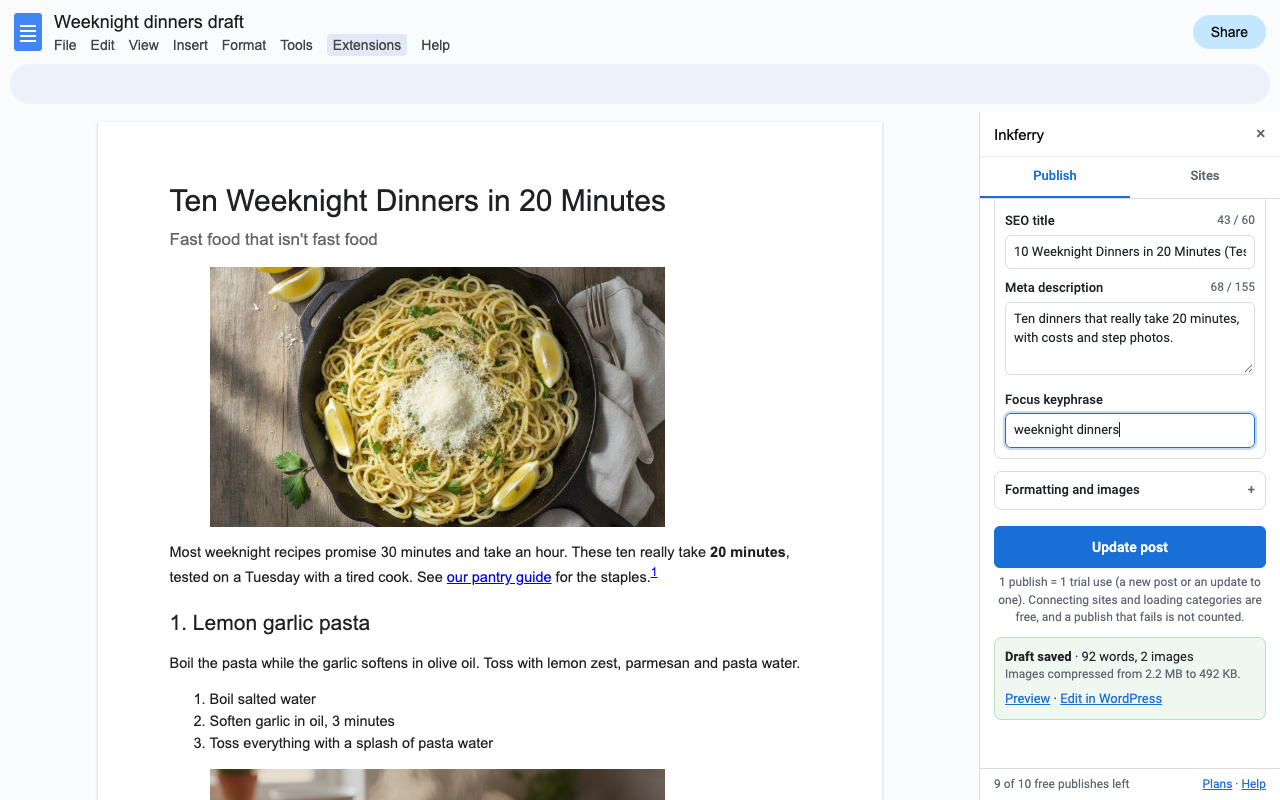
What it does
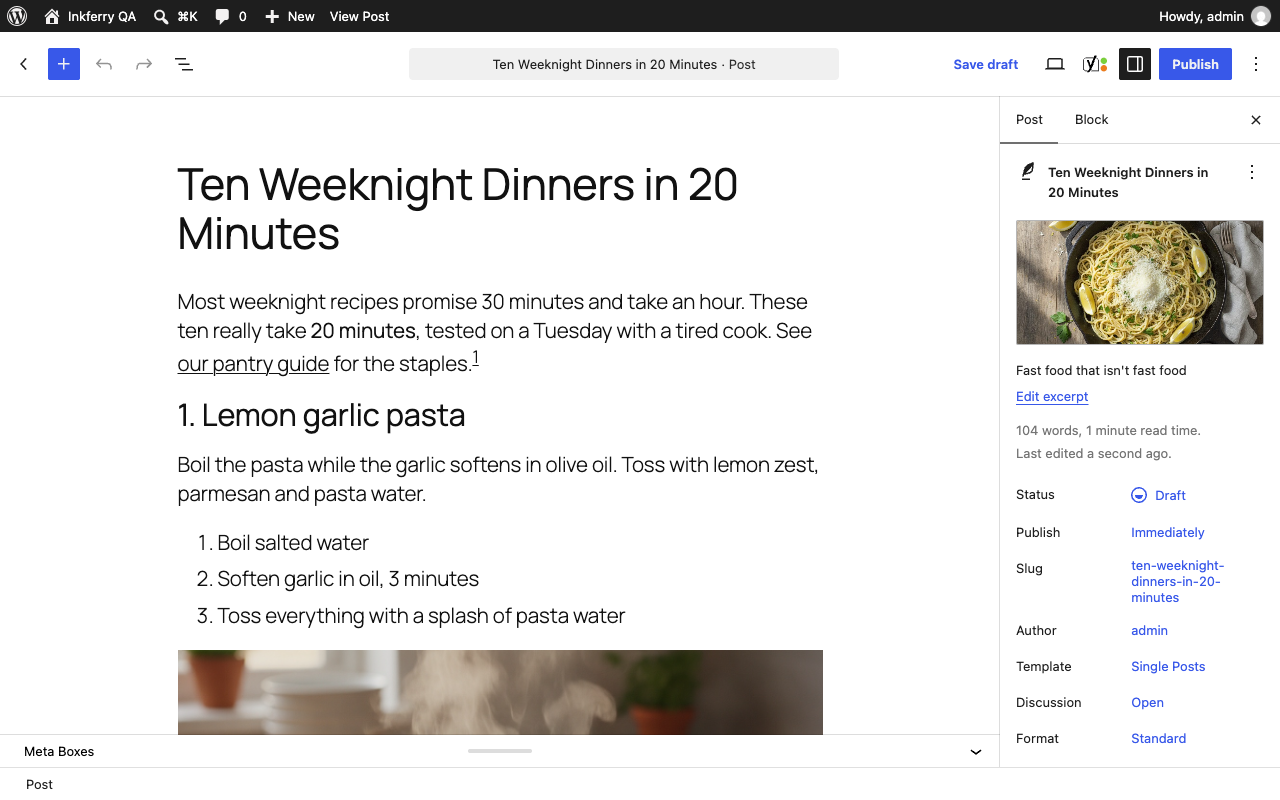
Headings, bold and italic, links, nested lists, tables with header rows, code, footnotes and separators arrive as real WordPress blocks. No stray spans, inline styles or Google redirect links.
Each image is resized and compressed in your browser, uploaded to your Media Library with the alt text from the Doc, and placed where it was. The first image can be the featured image.
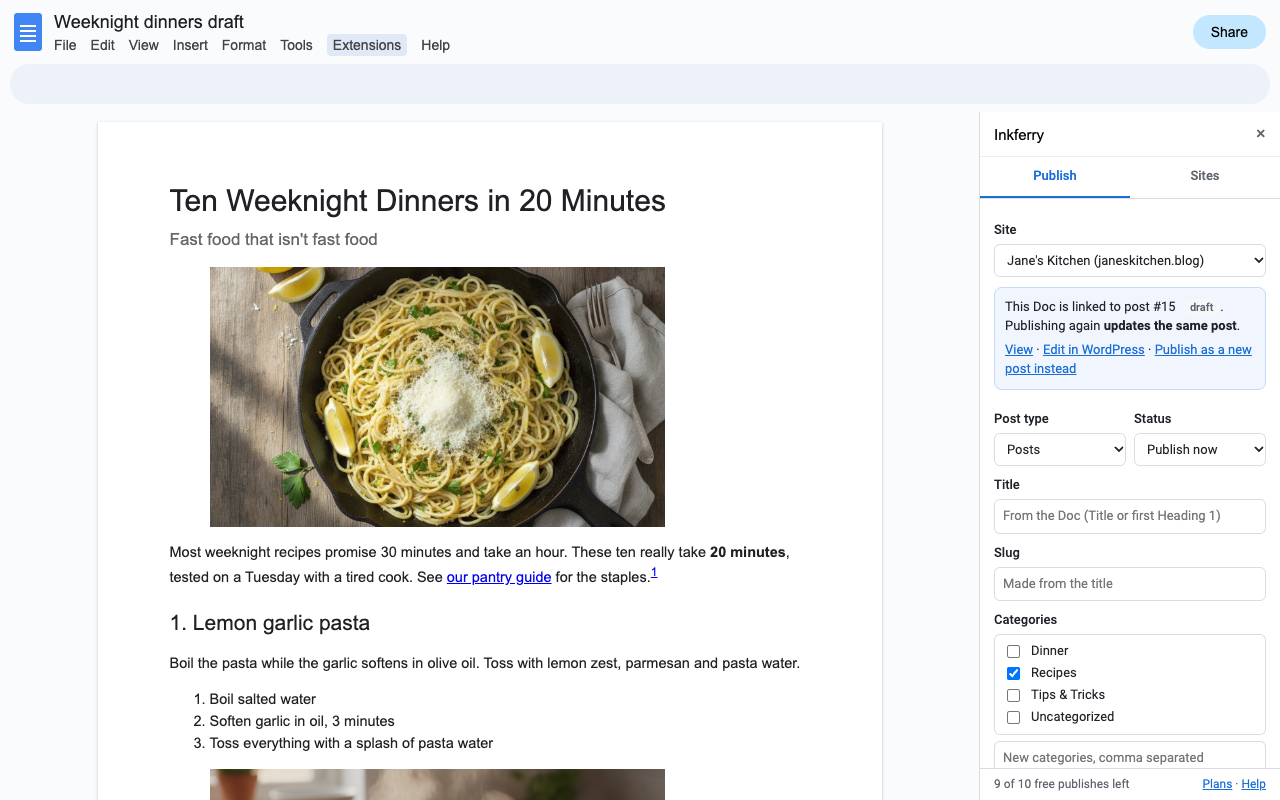
The Doc remembers its post. Publish again and the same post updates, same URL, and unchanged images are reused instead of uploaded twice.
If someone changed the post in WordPress after your last publish, Inkferry asks before replacing their edits, or publishes a new post instead.
Pick categories or create new ones, add tags, slug and excerpt, and set the SEO title, meta description and focus keyphrase for Rank Math or Yoast SEO.
Save a draft, publish now, schedule for later, send for review, or publish privately. Posts, pages and custom post types.
How to publish a Google Doc to WordPress
- Install Inkferry, open your Doc and choose Extensions > Inkferry > Connect a WordPress site.
- In WordPress, go to Users > Profile > Application Passwords, name it "Inkferry" and click Add New Application Password. Paste it into Inkferry with your site address and username. Application Passwords are built into WordPress 5.6 and later, so there's no plugin to install.
- Choose a status, categories and tags, and click Publish to WordPress.
- Made changes? Click Update post. The same post is updated.
The post title comes from a line styled Title (or your first Heading 1), and a Subtitle line under it becomes the excerpt. Heading 1 in the Doc becomes H2 on the site, because your theme already prints the post title as H1.
Google Docs to WordPress with images
Inkferry reads each image from the Doc, resizes it to the width you choose (1200 to 2560 px, or leave it as is), re-encodes photos as JPEG or WebP, keeps PNG for images with transparency and leaves animated GIFs alone. Then it uploads each one to your Media Library with a clean file name based on the post slug and the alt text you set in Docs (right-click an image > Alt text). A short italic line directly under an image becomes its caption.
Yoast SEO and Rank Math fields from Google Docs
- Rank Math: the SEO title, meta description and focus keyphrase are set on the post directly.
- Yoast SEO, SEOPress, The SEO Framework: these plugins don't accept the fields from outside WordPress by themselves. Add our one-file Inkferry SEO Fields helper (free, GPL) and they're set on every publish. It only lets users who can edit a post set that post's SEO fields.
- All in One SEO: not supported yet; the fields are saved with the Doc.
Pricing
About $16.58 a month. One Google account, unlimited WordPress sites and posts.
Same features, billed monthly.
Team plan: everyone on your company's Google Workspace domain, unlimited sites and posts.
10 publishes or 14 days, whichever comes first. No card needed. A publish is a new post or an update; failed publishes don't count.
No surprise charges. We never charge you unless you start a checkout yourself. Inkferry shows your trial status and these prices in the sidebar from the first minute. When the trial ends it shows the plans; nothing is charged, and every post you published stays on your site.
Renewal. Monthly, annual and team plans renew automatically at the same price until you cancel. Cancel any time from Extensions > Inkferry > Plans and billing, in one step. You keep access until the end of the period you paid for.
Right to cancel (UK and EU). If you are a consumer in the UK or EU, you can cancel within 14 days of buying and get a full refund. Email hello@greatwork.company or cancel in Plans and billing and reply to the receipt.
Mistakes. Charged twice or by accident? Email us and we'll refund it.
Prices are in US dollars and exclude any sales tax or VAT that applies where you live. Payments are processed by Stripe; we never see your card number.
Compared with other Docs to WordPress tools
| Inkferry | |
|---|---|
| Monthly publish limits | None on paid plans: publish and update as often as you like. |
| Number of sites | Unlimited, on every paid plan. |
| WordPress plugin required to connect | No. It uses WordPress' own Application Passwords. |
| Your site login stored on a vendor's server | No. It stays in your Google account; posts go from Google straight to your site. |
| Images uploaded again on every update | No. Unchanged images are reused. |
| Edits made in WordPress silently overwritten | No. You're asked first. |
Help
Connecting fails with "WordPress didn't see the login"
Some hosts remove the Authorization header before WordPress sees it, or a security plugin blocks Application Passwords. Your host can pass the header through (on Apache, CGIPassAuth On), and security plugins have a setting to allow Application Passwords. Email us your site address and we'll help.
"Your site's firewall blocked the request"
Cloudflare rules or a security plugin are blocking REST API requests. Allow requests to /wp-json/ from logged-in users.
I'm a Contributor on the site
Contributors can't publish, so Inkferry sends the post for review (Pending) and tells you so.
Can my team update a post someone else published?
Yes. The link to the post is stored with the Doc, so any editor of the Doc who has Inkferry and their own WordPress login can update it. Each person's Application Password stays private to them.
What counts as a trial publish?
Each new post or update that succeeds. Connecting sites, loading categories and failed attempts don't count.
Still stuck?
Email hello@greatwork.company. A person replies within one business day.
Privacy
- Google data it accesses: only the Doc you open Inkferry in, and only when you click Publish: its text, formatting, images and alt text. It never changes the Doc and can't see the rest of your Drive.
- Where your content goes: to the WordPress site you connected, over https, directly from Google. Images are compressed in your browser first. Great Work never receives your posts or images.
- Your WordPress Application Password: stored only in your Google account's private add-on storage. Never sent to Great Work, and not visible to other people editing the Doc. Remove it under Sites at any time and revoke it in your WordPress profile.
- Stored with the Doc: which post it was published to, your publish settings for that Doc, and the ids of images already uploaded.
- What reaches Great Work: your Google account email, the product id and a count of trial publishes, for billing. See the full privacy policy.
- Sharing: we don't sell data, use it for ads, or use it to train AI models.
- Inkferry's use and transfer of information received from Google APIs adheres to the Google API Services User Data Policy, including the Limited Use requirements.