A teleprompter app inside Google Docs and Slides
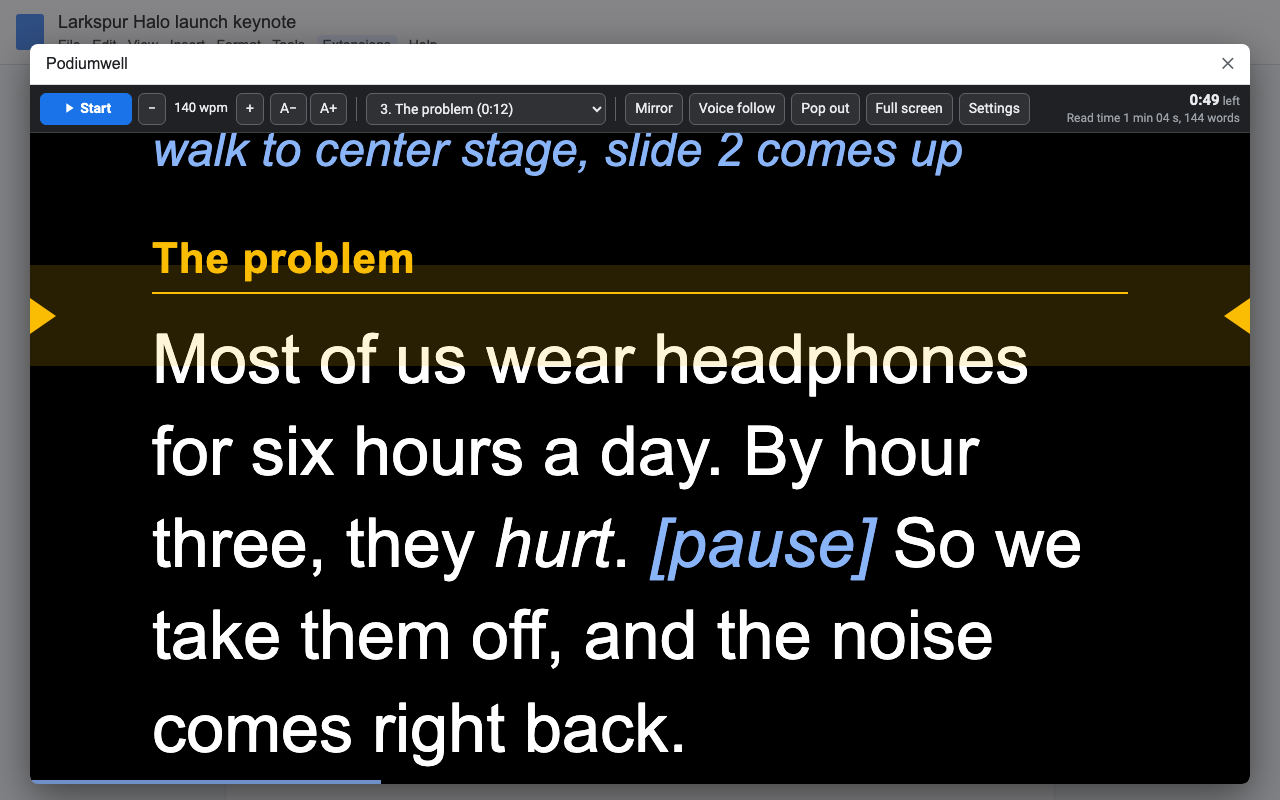
Podiumwell scrolls the script you wrote in a Google Doc, or your Slides speaker notes, in a full-window teleprompter. Set the speed in words per minute, mirror it for prompter glass, run it from a clicker or foot pedal, and pop it out to a second screen.
What it does
No copying or exporting. Edit the Doc, open the teleprompter again, and the change is there.
Speed in words per minute, a 3, 5 or 10 second countdown, the read time and the time left always on screen.
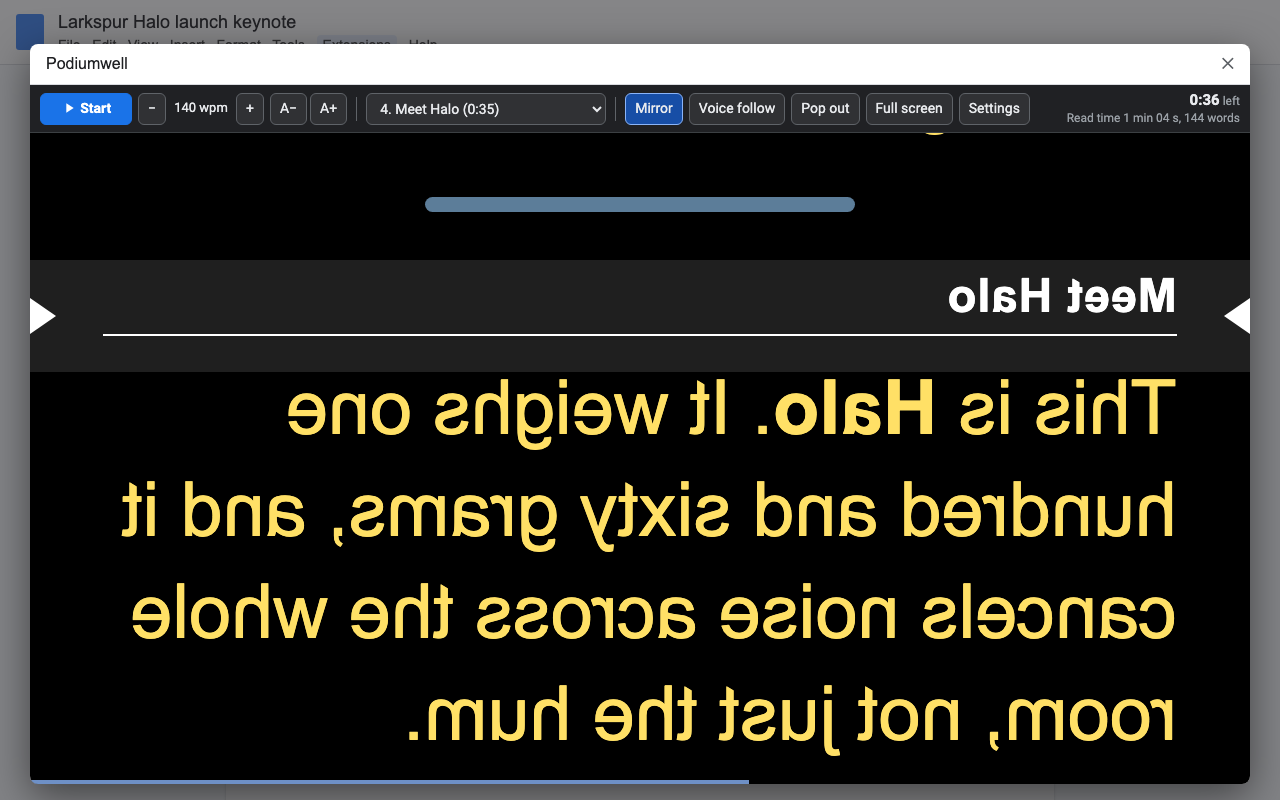
Flip left to right for beam-splitter glass, or upside down for monitors mounted under the lens.
Page Down and Page Up jump between sections, nudge the text, or play and pause. The blank-screen button pauses.
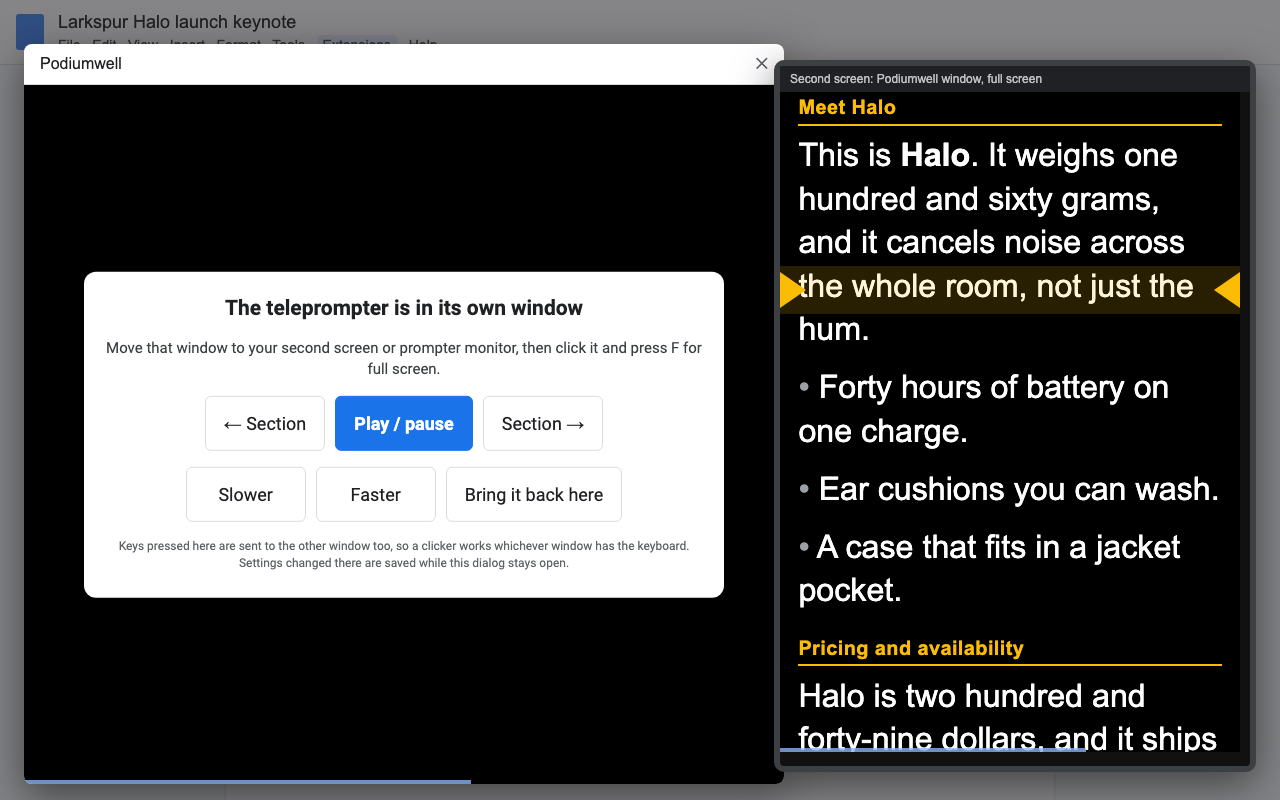
Pop out to its own window for your second monitor or the prompter's monitor; the dialog becomes a remote control.
Speed, size, margins, colors, mirror, reading line and clicker settings, plus where you stopped.
How to use a Google Doc as a teleprompter
- Install Podiumwell and open the Doc with your script.
- Choose Extensions > Podiumwell > Open teleprompter (or Start from the cursor, or select text and choose Prompt the selected text).
- Click the teleprompter once, then press Space. After the countdown it scrolls; Up and Down change the speed.
- Headings are sections: jump with the clicker, Page Down / Page Up, or the keys 1 to 9.
Write for the prompter
Bold, italic and underline show up. Anything in [square brackets], or a line starting with //, is a cue: blue, italic and never counted in the read time. A horizontal line, --- or [pause] becomes a pause mark.
Your Google Slides speaker notes as a teleprompter
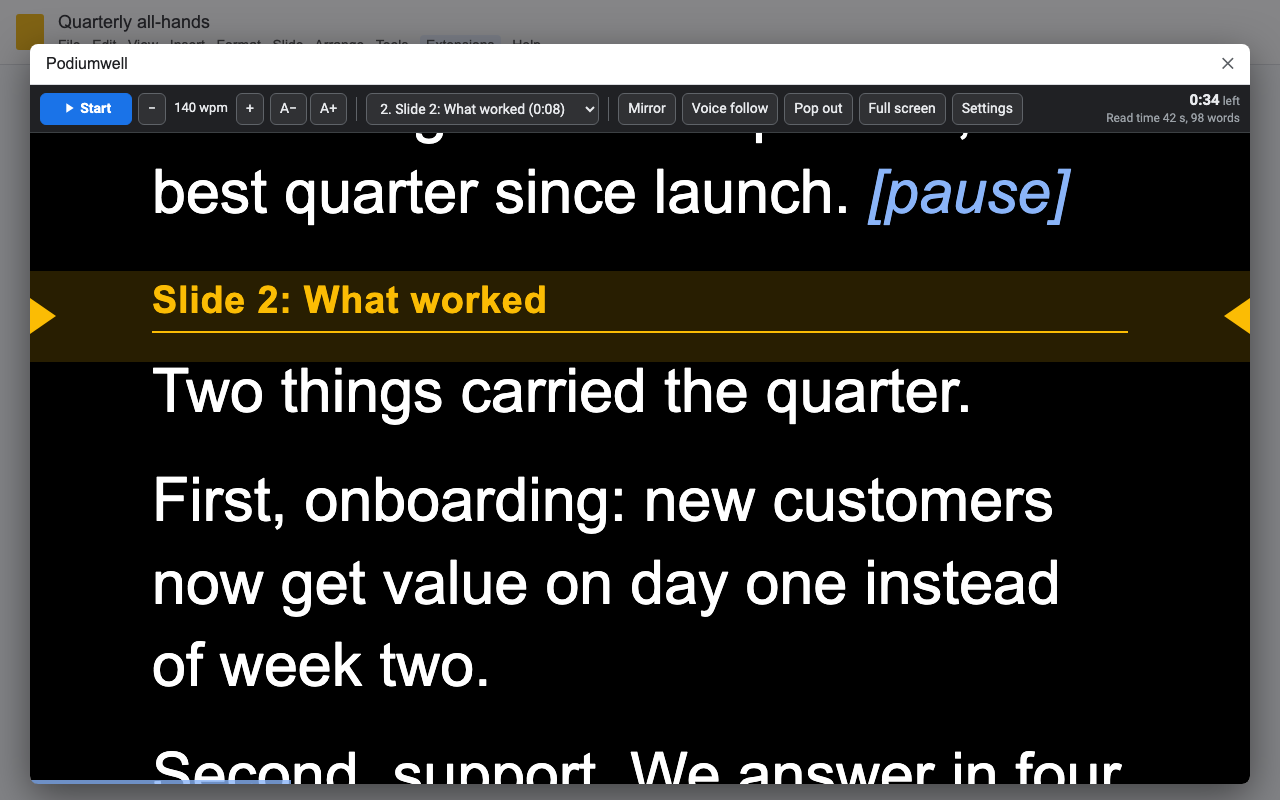
In the deck, choose Extensions > Podiumwell > Open speaker notes teleprompter or Start from this slide. Every slide's notes scroll as one script with a "Slide 3: Title" marker, so the clicker moves slide by slide. In Settings, prompt the notes, the notes or the slide's text when a slide has none, or both. Hidden slides are skipped.
Second screens, prompter rigs and video calls
Pop out opens the teleprompter in its own window. Drag it to the second monitor, the prompter's monitor or right under your webcam for a video call, click it and press F for full screen. The dialog stays behind as a remote control with Play, Section and Speed buttons, and keys pressed there reach the teleprompter too. If nothing opens, allow pop-ups for docs.google.com.
Clickers, foot pedals and keys
| Space, Enter, B or . | Play / pause (the clicker's blank-screen button too) |
| Page Down / Right | Clicker forward: next section, nudge, or play/pause (your choice) |
| Page Up / Left | Clicker back: start of this section, then the previous one |
| Down / Up | Faster / slower |
| + / - | Bigger / smaller text |
| 1 to 9, Home, End | Jump to a section, the top, the end |
| M, L, F | Mirror, reading line, full screen |
Logitech, Kensington, Targus and most USB presentation remotes and foot pedals send these keys, so they work with no pairing or drivers.
Voice follow, with your privacy first
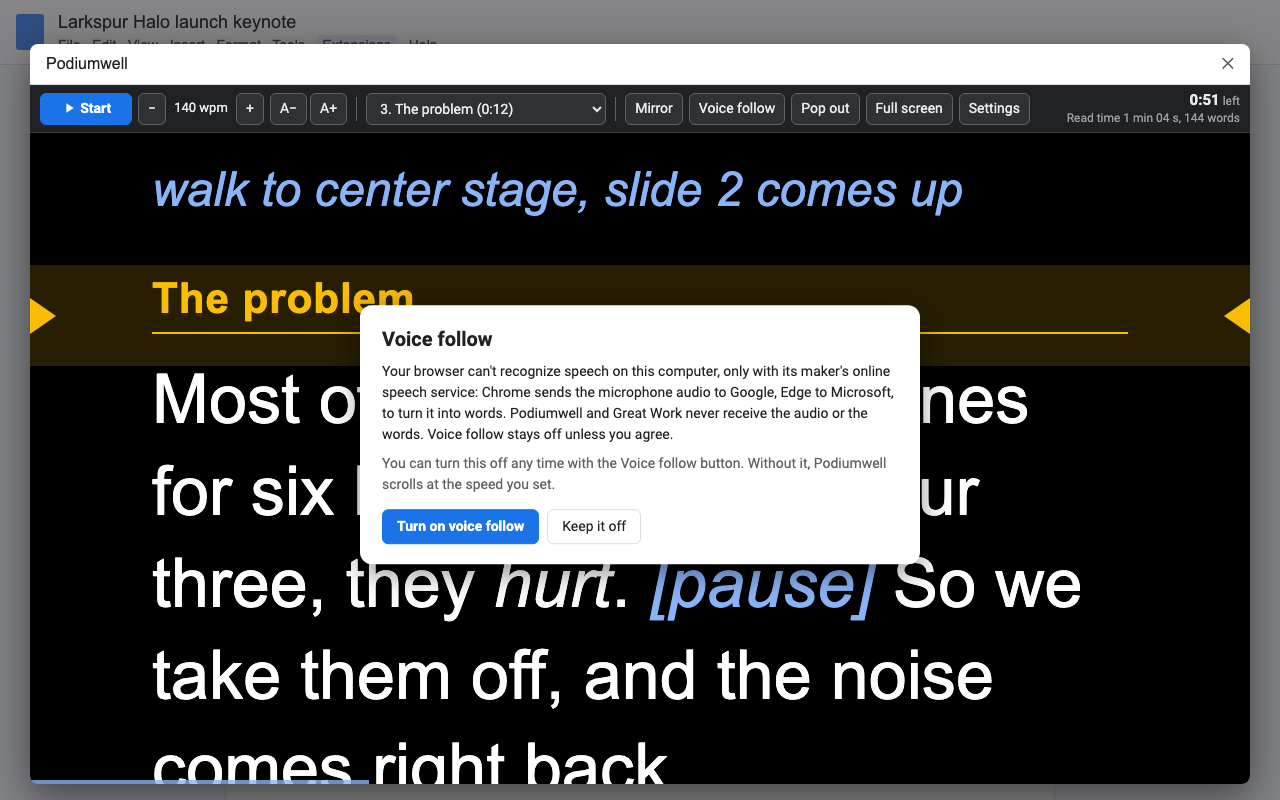
Turn on Voice follow in the pop-out window and the text follows you as you speak, using your browser's own speech recognition (Chrome or Edge). When the browser can recognize speech on your computer, it does, and your voice never leaves it. When it can only use its maker's online speech service (Google for Chrome, Microsoft for Edge), Podiumwell tells you that plainly and stays off unless you agree. Great Work never receives your audio or your words. Without voice follow, it scrolls at the speed you set.
Pricing
One Google account. Cancel any time.
One Google account. About $16.58 a month.
Everyone in your church, school or company's Google Workspace domain.
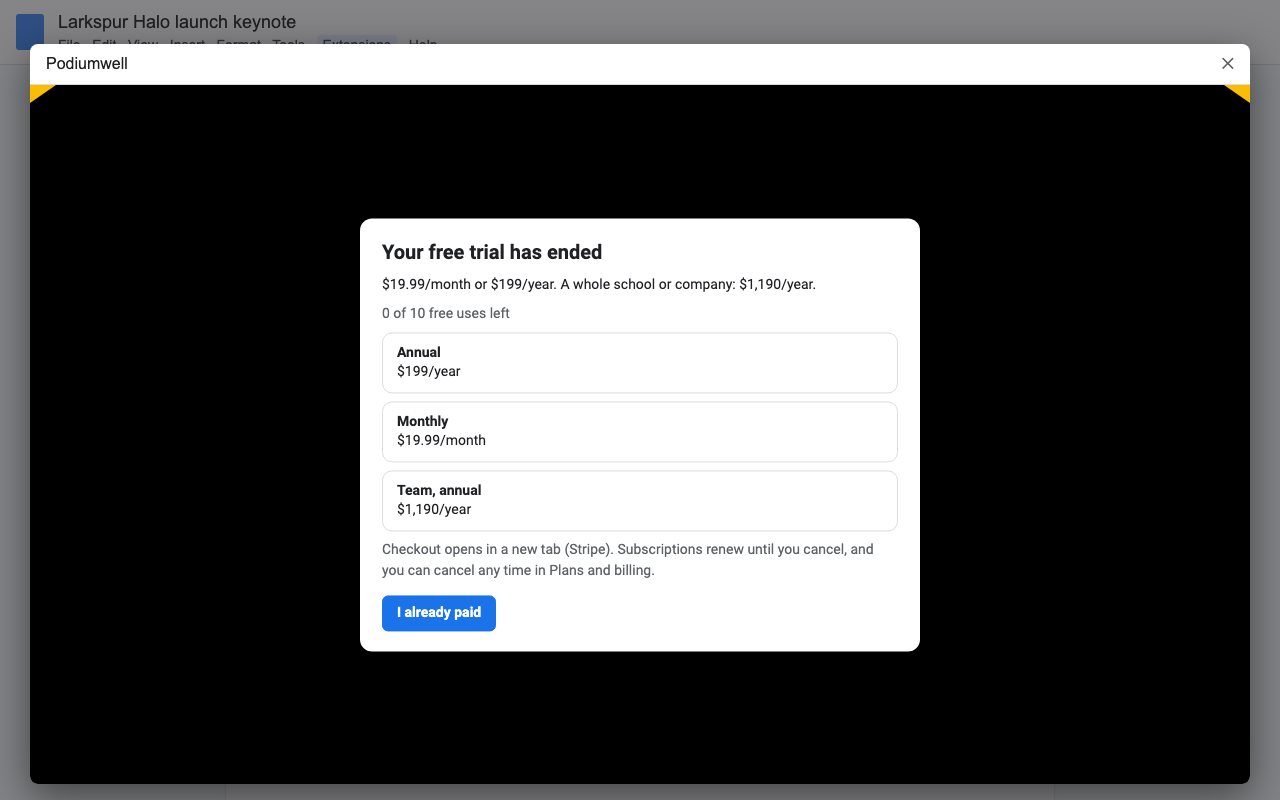
Free trial: 10 teleprompter sessions or 14 days, whichever comes first. No card needed. One session is opening the teleprompter on one Doc or deck; reopening the same file within 3 hours, rehearsing, pausing, pop-out and settings never count again.
Renewal: plans renew automatically until you cancel in Extensions > Podiumwell > Plans and billing (Manage billing). You keep access until the end of the period you paid for.
UK and EU customers: you can cancel within 14 days of buying for a full refund, no reason needed. Email hello@greatwork.company.
There is no free-forever plan, and nothing is charged without you choosing a plan first. The price is in the add-on and in Help before you pay anything.
Privacy and permissions
- Only the file you open it in. Podiumwell uses Google's "current document only" and "current presentation only" permissions. It can't see the rest of your Drive, and it never changes your file.
- Your script isn't sent to us. It is shown in your browser. Pop out copies it into a new window on your computer.
- What it stores: your settings, each file's settings and the word number where you stopped (no text), and your voice-follow choice, in your Google account's private add-on storage.
- What reaches Great Work: your Google account email and how many teleprompter sessions you started during the trial. Payments go through Stripe.
Full policy: addons.greatwork.company/privacy. Terms: addons.greatwork.company/terms.
Questions
Is it a browser extension or teleprompter software I install?
Neither. It's a Google Docs and Slides add-on, so it works in the browser you already use for Docs, on Mac, Windows and Chromebooks, with nothing else to install.
Does it work on a video call?
Yes. Pop it out, put the window right under your webcam, make it narrow with wide margins, and set the reading line near the top so your eyes stay close to the lens.
Will it work with my beam-splitter prompter?
Yes: mirror mode flips the text left to right, and upside-down mode handles monitors mounted under the camera. Pop out to the prompter's monitor and press F for full screen.
Can I edit the script while prompting?
Edit it in the Doc or the speaker notes, then open the teleprompter again. Your speed and settings are kept for that file.
Google keeps asking me to authorize it, or says it can't confirm my account.
That happens when several Google accounts are signed in to the same browser. Open the file in a window where only one account is signed in, or a private window.