Text to speech for Google Docs and Slides, with every word highlighted
Aloudwell reads your Doc or deck aloud and lights up each word as it is spoken. Start at the cursor, read just a selection or your speaker notes, and pick up where you stopped.
Bring a packed lunch and a water bottle. We leave at 8.
Email us to get Aloudwell See pricing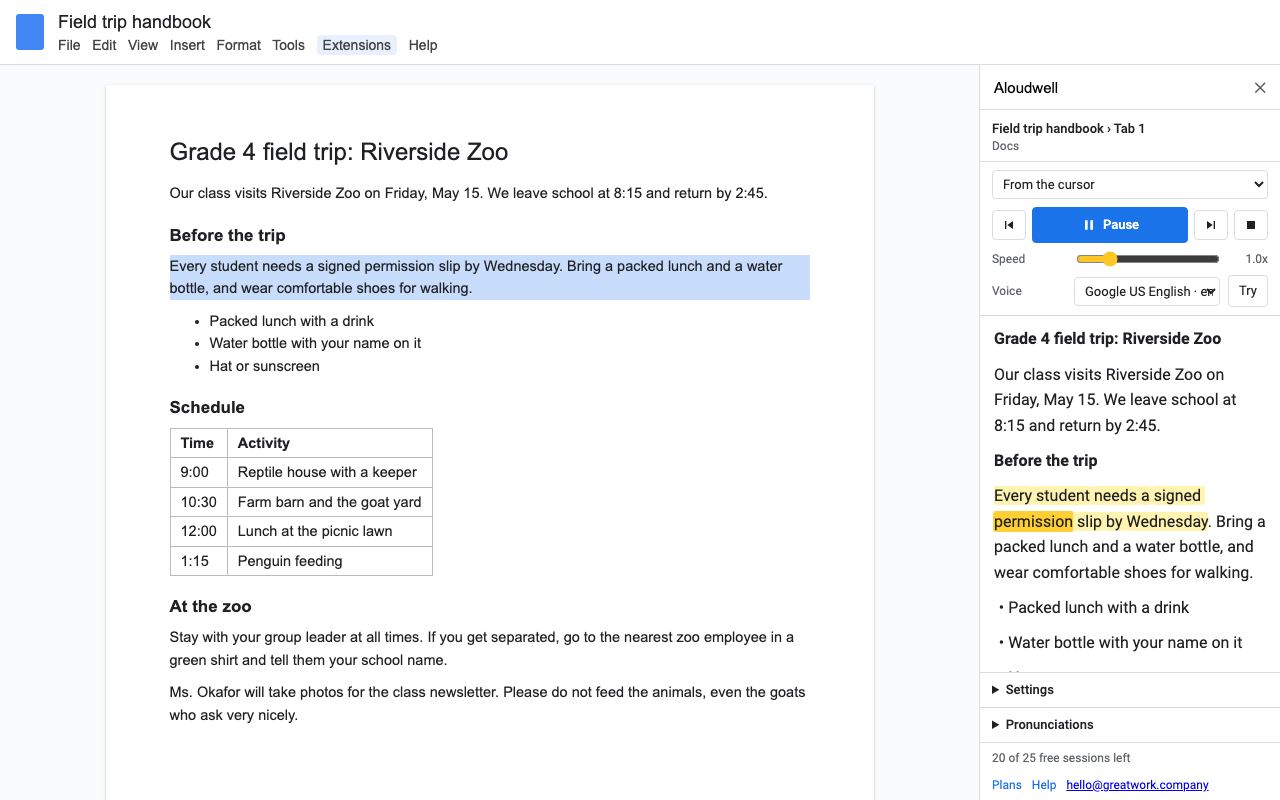
What it does
The sentence being read is tinted and each word lights up. The Doc scrolls with you, or Slides moves to each slide.
From the cursor, only the selected text, from the top, or "Resume where I stopped", remembered for every file.
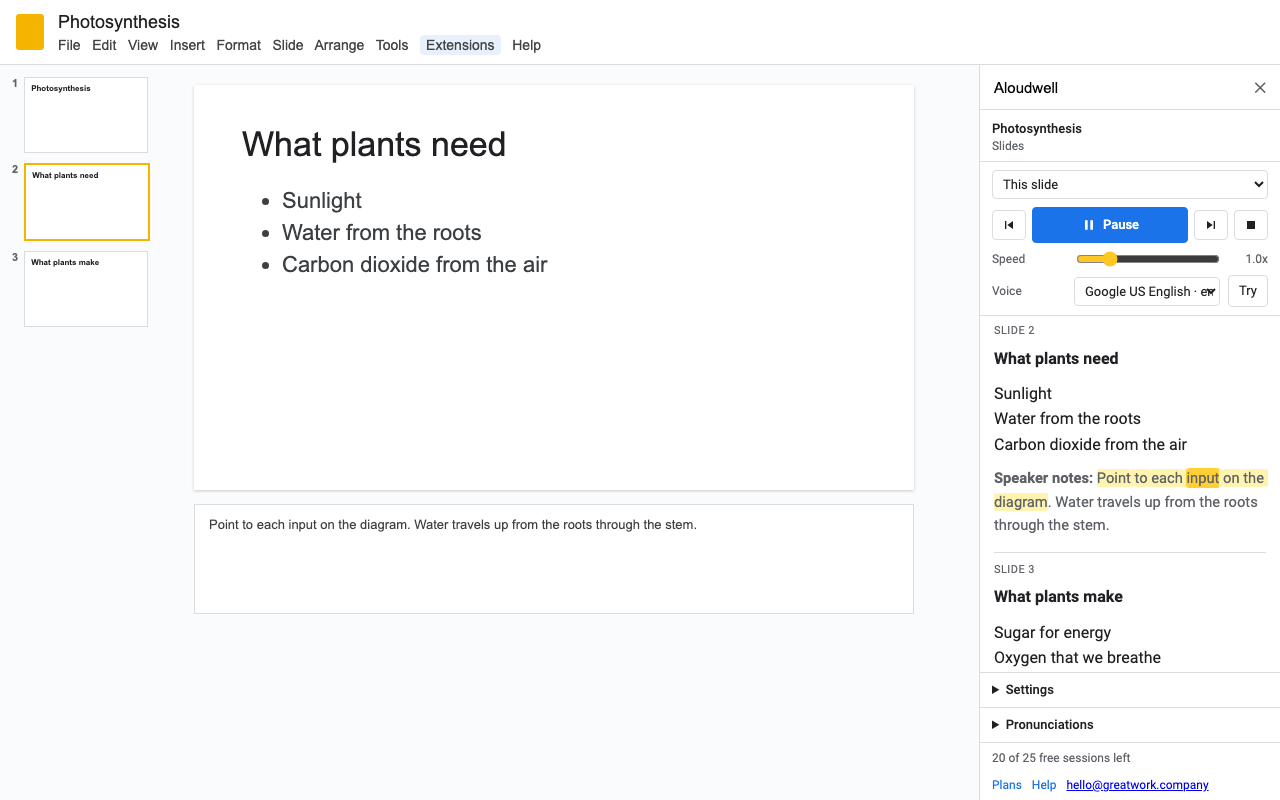
Slide text in reading order, your speaker notes, or both, slide by slide. Rehearse a talk by ear.
0.5x to 3x, pitch and volume, and every voice your computer has, in any language it speaks.
Light, Cream or Dark colors, text up to 32 px, wide line spacing and easy-to-read fonts like Verdana.
Teach it names and terms once. Links read as the site name. Choose whether to read tables, footnotes and image descriptions.
How to make Google Docs read to you
- Install Aloudwell and open your Doc.
- Click where you want to start, then choose Extensions > Aloudwell > Read from the cursor. Or select some text and choose Read the selection.
- Press Play if your browser asks for a click. Each word lights up in the sidebar as it is read; click any word to jump there.
- Next time, pick Resume where I stopped. Aloudwell finds your place even if the Doc was edited.
How to hear Google Slides and speaker notes read aloud
Open the deck, choose Extensions > Aloudwell > Read this slide or Read from this slide on, and in Settings pick Slide text, Speaker notes only or Slide text, then speaker notes. It reads the title first, then top to bottom, left to right, says "Slide 3" before each slide if you like, and skips hidden slides.
Pricing
One Google account. Cancel any time.
One Google account. About $8.25 a month.
Everyone in your school or company's Google Workspace domain.
Free trial: 25 listening sessions or 14 days, whichever comes first. No card needed. One session is up to an hour of listening in one Doc or deck; pausing, skipping, changing voice or speed and trying voices never count.
Renewal: plans renew automatically until you cancel in Extensions > Aloudwell > Plans and billing (Manage billing). You keep access until the end of the period you paid for.
UK and EU customers: you can cancel within 14 days of your first purchase for a full refund, no reason needed. Email hello@greatwork.company.
There is no free-forever plan, and nothing is charged without you choosing a plan first. The price is in the sidebar and in Help before you pay anything.
Privacy and permissions
- Only the file you open it in. Aloudwell uses Google's "current document only" and "current presentation only" permissions. It can't see the rest of your Drive, and it never changes your file.
- Your text isn't sent to us. Your browser speaks it with its own voices. Aloudwell never sends your text to Great Work or to a text-to-speech company, and nothing is recorded. Voices labeled "online" are run by your browser's maker (Google or Microsoft); tick "Only voices on this computer" to use on-device voices only.
- What it stores: your settings and pronunciation list, and your place in up to 150 files (a paragraph number, a short fingerprint and its first few words), in your Google account's private add-on storage.
- What reaches Great Work: your Google account email and how many listening sessions you started during the trial. Payments go through Stripe.
Full policy: addons.greatwork.company/privacy. Terms: addons.greatwork.company/terms.
Questions
Does it work with my school or personal Google account?
Yes. It works on personal Gmail accounts and every Google Workspace edition, in any browser that can speak (Chrome, Edge, Safari, Firefox), including school Chromebooks.
Is it a browser extension?
No. It's a Google Docs and Slides add-on, so it works in whatever browser you open Docs in, with nothing else to install.
Which languages?
Any language your computer has a voice for. The voice list is grouped by language.
Is it a screen reader?
No. It's a reading aid for following along with text. People who use a screen reader should keep using it.
Play doesn't start the first time.
Browsers only allow speech after a click inside the page. Press Play once more.
Google keeps asking me to authorize it, or says it can't confirm my account.
That happens when several Google accounts are signed in to the same browser. Open the file in a window where only one account is signed in, or a private window.